

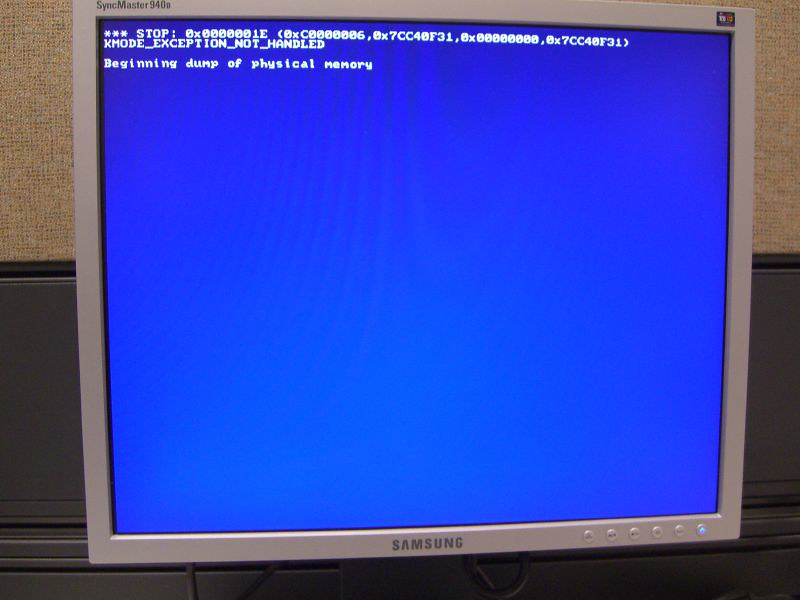
KMODE_EXCEPTION_NOT_HANDLED is a Windows blue screen (stop code 0x0000001E) that appears when a program running in kernel mode, almost always a device driver, raises an error that Windows cannot handle. The fastest fixes are to update or roll back the driver named on the blue screen, turn off Fast Startup, test your RAM, and repair system files with SFC and DISM. If the crash keeps returning, a faulty hardware component or an unstable overclock is the likely cause.
This guide explains what the error means, how to find the specific driver or component behind it, and the fixes to try in the order most likely to work on Windows 10 and Windows 11.
What Does KMODE_EXCEPTION_NOT_HANDLED Mean?
Windows separates code into user mode, where normal apps run, and kernel mode, where the core of the operating system and hardware drivers run. Kernel-mode code has unrestricted access to memory and hardware, so a mistake there can corrupt the whole system. When a kernel-mode component triggers an exception (for example, it tries to read invalid memory or runs an illegal instruction) and no error handler catches it, Windows stops immediately to protect your data. That emergency stop is the Blue Screen of Death (BSOD) you see.
Sometimes the blue screen names the file that failed, shown after “What failed:” with a .sys extension. Write that name down. It points straight to the driver responsible and can save you hours of guesswork.
Common Causes
- Faulty, outdated or incompatible drivers: The most frequent cause. Network, graphics, audio, storage and antivirus drivers are common culprits, especially after a Windows feature update.
- Defective or unstable RAM: Memory errors can make otherwise healthy drivers crash.
- Software conflicts: Programs that install their own kernel drivers, such as antivirus suites, VPN clients, anti-cheat tools, virtual drive utilities and hardware monitoring apps, can clash with each other or with Windows.
- Corrupted system files: Abrupt shutdowns, disk errors or malware can damage core Windows files.
- Fast Startup: Because Fast Startup restores a saved kernel state rather than starting fresh, a driver problem can persist across “restarts” and trigger the error on boot.
- Overclocking and overheating: Pushing a CPU, GPU or RAM beyond stable settings, or running hot, can cause kernel exceptions.
- Failing storage or peripherals: A dying SSD or a faulty USB device can produce I/O errors at kernel level.
Quick Diagnosis: Match the Symptom to the Likely Cause
| What you notice | Most likely cause | First fix to try |
|---|---|---|
| Blue screen names a .sys file | Specific driver | Update, roll back or reinstall that driver |
| Crash started after a Windows update | New driver incompatibility | Update drivers from the manufacturer, or roll back |
| Crash started after installing an app | Software kernel driver conflict | Uninstall the app in Safe Mode |
| Crashes at boot only | Fast Startup or storage driver | Disable Fast Startup, check disk |
| Random crashes during gaming or heavy load | RAM, overclock or temperatures | Reset overclock, run memory test, check temps |
| Crash after adding new hardware | Hardware driver or compatibility | Remove the device, install the correct driver |
How to Fix KMODE_EXCEPTION_NOT_HANDLED
Work through these steps in order. Restart and use your PC normally after each one so you know which change solved it. If Windows crashes before you can reach the desktop, boot into Safe Mode first (see the next section).
1. Update, Roll Back or Reinstall the Problem Driver
Right-click Start and open Device Manager. Find the device that matches the .sys file from the blue screen, or look for anything with a yellow warning icon. Right-click it and choose Update driver. If the crash started after a recent driver update, open Properties, go to the Driver tab and choose Roll Back Driver instead. For graphics, network and chipset drivers, the most reliable versions usually come directly from the hardware or PC manufacturer’s support site.
2. Turn Off Fast Startup
Open Control Panel, go to Power Options, then “Choose what the power buttons do.” Click “Change settings that are currently unavailable,” uncheck “Turn on fast startup,” and save. This forces a full kernel reload at each boot and clears problems carried over from a saved state.
3. Remove Recently Installed Software
If the error began after installing a program, uninstall it from Settings > Apps. Pay particular attention to antivirus tools, VPNs, system tuners and game anti-cheat software, since these install kernel-mode drivers. Running two antivirus products at once is a classic trigger.
4. Repair System Files with SFC and DISM
Open Command Prompt as administrator and run:
DISM /Online /Cleanup-Image /RestoreHealth, which repairs the Windows component storesfc /scannow, which scans and replaces corrupted system files
Running DISM first gives SFC a healthy source to repair from. Restart when both finish.
5. Test Your Memory
Press Windows + R, type mdsched.exe, and choose to restart and check for problems. Windows Memory Diagnostic runs before Windows loads and reports results after the next sign-in. If errors appear, test one RAM stick at a time to find the faulty module, and reset any XMP or EXPO memory profile in the BIOS to default speeds to see if the crashes stop.

6. Check Your Drive for Errors
In an administrator Command Prompt, run chkdsk C: /f /r and accept the prompt to schedule it on the next restart. You can also check the drive’s health status in the manufacturer’s SSD utility. A drive reporting failing health should be backed up and replaced.
7. Install Windows Updates
Go to Settings > Windows Update and install all available updates, including optional driver updates. Microsoft regularly ships fixes for driver compatibility and stability problems.
8. Scan for Malware
Run a full scan with Microsoft Defender or another trusted antivirus. Malware is not a common direct cause, but it can damage drivers and system files in ways that lead to this crash.
9. Undo Overclocks and Check Temperatures
Reset CPU, GPU and memory overclocks to stock settings, either in the BIOS or in the tuning software you used. Use a monitoring tool to check temperatures under load, clean dust from fans and filters, and make sure the CPU cooler is seated properly.
10. Use System Restore or Reset Windows
If none of the above helps, use System Restore to roll back to a point before the crashes began. As a last resort, Settings > System > Recovery lets you reset Windows while keeping your personal files. If crashes continue even after a clean reset, the problem is almost certainly hardware.
This video walks through several of these fixes on screen:
What to Do If Windows Won’t Boot
If the blue screen appears every time Windows starts, interrupt the boot three times in a row (power off as the Windows logo appears) to reach the Windows Recovery Environment. From there, choose Troubleshoot > Advanced options > Startup Settings > Restart, then press 4 or F4 for Safe Mode. Safe Mode loads only essential drivers, so you can uninstall the problem software or roll back drivers. The same Advanced options menu also offers System Restore and “Uninstall Updates” if a recent update caused the problem.
Finding the Exact Culprit with Crash Dumps
When the blue screen does not name a driver, the crash dump usually does. Windows saves small memory dumps in C:\Windows\Minidump. Open one in Microsoft’s free WinDbg tool and run the !analyze -v command to see which module caused the exception. Event Viewer, under Windows Logs > System, also records BugCheck entries with the time of each crash, which helps you match crashes to recent changes.
For persistent, hard-to-trace driver crashes, advanced users can run Windows Driver Verifier (type verifier in an admin prompt) to stress-test third-party drivers. It deliberately triggers crashes when a driver misbehaves, so create a restore point first and know how to reach Safe Mode to turn it off.
How to Prevent the Error from Coming Back
- Install drivers from the hardware maker or Windows Update, not from third-party “driver updater” tools.
- Keep Windows updated, but create a restore point before major feature updates.
- Run only one real-time antivirus product.
- Leave CPU, GPU and RAM at stable settings, and keep the PC clean and well ventilated.
- Back up important files regularly to an external drive or cloud storage so a crash never costs you data.
- Watch for warning signs such as freezes, file errors or new noises, which often show up before a hardware failure.
Bottom Line
In most cases, KMODE_EXCEPTION_NOT_HANDLED is a driver problem, and updating or rolling back the driver named on the blue screen fixes it. If no driver is named, disable Fast Startup, repair system files, test your memory and undo any overclocking. When the crash survives a Windows reset, have the hardware checked by a technician. For more troubleshooting help, explore our guides.
Frequently Asked Questions
What is KMODE_EXCEPTION_NOT_HANDLED?
It is a Windows stop error, code 0x0000001E, that occurs when kernel-mode code such as a device driver raises an exception that Windows cannot handle. Windows shuts down with a blue screen to prevent data corruption.
What causes KMODE_EXCEPTION_NOT_HANDLED?
Faulty or incompatible drivers are the most common cause. Bad RAM, conflicting security or system software, corrupted system files, Fast Startup and unstable overclocks can also trigger it.
Is KMODE_EXCEPTION_NOT_HANDLED a hardware or software problem?
It can be either, but it is usually software, specifically a driver. If the error continues after updating drivers, repairing system files and resetting Windows, faulty hardware such as RAM or a failing drive is the likely cause.
Can Windows updates fix this error?
Yes, in many cases. Updates often include driver fixes and stability improvements. However, if the error started right after an update, rolling back that update or the affected driver may be the better fix.
How do I fix KMODE_EXCEPTION_NOT_HANDLED if I can’t log in?
Interrupt startup three times to open the Windows Recovery Environment, then boot into Safe Mode from Startup Settings. From Safe Mode you can roll back drivers, uninstall software, or run System Restore.
Is this error caused by a virus?
Rarely. Malware is not a typical direct cause, but it can damage drivers or system files and indirectly lead to the crash. A full antivirus scan is a sensible step if other fixes do not work.